SEOquake Troubleshooting

Written by Leigh McKenzie

Having trouble after the update?
If SEOquake isn’t working as expected, tell us what happened and what you expected instead. Include your SEOquake version and the affected page URL, if you can share it.
Report a problem to the SEOquake team
Looking for a familiar tool? See what moved in the new interface. SEObar is available in SEOquake 4.1 and later. SERP Overlay is available in SEOquake 4.2 and later, including country and language selection. Some other legacy features remain unavailable.
This guide covers common SEOquake issues and how to fix them.
Use this guide when SEOquake will not open, SEObar or SERP Overlay is missing, the pop-up looks incomplete, Semrush data is unavailable, or a report shows an unfamiliar loading state.
1. SEOquake Will Not Open
If SEOquake won’t open, the extension may not be installed or enabled.
How to Fix It
Step 1: Type chrome://extensions in your browser’s address bar (or click the Chrome Extensions icon (puzzle piece shape) in your toolbar, then click “Manage Extensions”).
Find SEOquake in the Chrome Extensions list and make sure the toggle is switched on.

Step 2: After confirming SEOquake is enabled, go to a regular webpage. SEOquake can’t access browser settings pages or extension pages.
Step 3: Open SEOquake by clicking its icon in the Chrome Extensions list. (You can also pin it to your toolbar for one-click access. Learn how in our SEOquake user guide.)
The Quick View report should pop up on that page.
If Quick View says SEOquake is paused, select Resume SEOquake or turn on the switch next to the gear icon. You can also open the gear menu and select Enable SEOquake. This resumes the extension without resetting your preferences.

Step 4: If SEOquake still won’t open, update the extension from the Chrome Web Store if a new version is available.

Step 5: If it still won’t open, close Chrome, restart it, and try opening SEOquake again.
2. The Quick View Pop-Up Opens, but Data Is Missing
To collect page-level SEO data, SEOquake’s Quick View pop-up needs access to an active browser tab. Some checks (like robots.txt, sitemap and response headers) run in the background, so the pop-up may look incomplete at first.
How to Fix It
Step 1: Wait a few seconds, then reopen SEOquake to see if the missing data has filled in.
Step 2: Reload the page, reopen SEOquake, and let the report update for a minute.
Step 3: Check your internet connection if data is still missing — the background checks need network access.
3. Semrush Data Is Missing or Locked
You don’t need a Semrush account to use SEOquake — multiple Semrush metrics are included for free, such as Semrush Rank, SE Traffic, Traffic Cost, and backlinks.
Connect a Semrush account to unlock deeper data, including detailed backlink analysis and Traffic Analytics. Until you connect, those sections appear as a “See More with Semrush” card in the Semrush tab.

For a full breakdown of what’s available with and without a connected account, see the SEOquake Usage guide.
How to Fix It
Step 1: Connect your Semrush account using the steps in the next section
Step 2: If you’ve already connected your Semrush account, make sure you’re still logged into Semrush in the same browser, then reopen SEOquake
Step 3: If the data still won’t load, close Chrome, reopen it, and try SEOquake again
4. Connect or Reconnect Semrush
If you need to connect or reconnect your Semrush account to SEOquake, follow these steps.
How to Fix It
Step 1: Log in to your Semrush account in Chrome.
Step 2: Open SEOquake’s Settings and select the “Integrations” tab, or click the gear icon in Quick View and select “Manage Semrush connection.”

For step-by-step guidance on opening Settings, view the SEOquake Configuration guide.
Step 3: Under “Semrush Integration,” click “Connect Semrush.”

Step 4: Review the authorization pop-up and click “Approve.”

Once connected, the button changes to “Disconnect Semrush,” and the panel shows your account ID and email.
If your connection goes stale, click “Disconnect Semrush” and follow the steps above to reconnect.

5. SEOquake’s Links Report Shows “…”, a Spinner, or “N/A”
The Links report includes data that loads automatically (URL, anchor text and follow status) and data that loads on request (Backlinks and any optional metrics you’ve added).

Depending on what’s loading or unavailable, you may see different states in the report’s cells:
- “…” in the Status column: SEOquake is still checking HTTP status codes. On pages with many links, this can take a moment. Wait for the data to populate.
- Spinner icon in a metric cell: That metric loads on request. Follow the steps in the “How to Fix It” section below.
- “n/a” in a cell: The data isn’t available for that link; SEOquake couldn’t get a value for that URL or domain.
How to Fix It
If you see a spinner icon in the Links report, follow these steps to load the data:
Step 1: Click the spinner icon in the metric cell to load the data for that link.

Step 2: To load every visible metric column at once, click “Request all parameters.”

6. SEOquake’s Robots.txt Check Shows an Issue
SEOquake’s Robots.txt check confirms whether the current URL is allowed by the site’s robots.txt file. You’ll find the result under the “Audit” tab in Quick View or the Full Report.

The Audit can return any of the following robots.txt status labels:
- Pending: SEOquake is still checking robots.txt. Wait for the check to finish.
- Allowed: The file is readable, and no page-level block was found for the current URL
- Blocked: The current URL appears to be blocked by robots.txt
- Missing: No robots.txt file was found on the site
- Error: The file couldn’t be reached, returned an unsupported response, or has invalid syntax
Robots.txt is different from Meta Robots and X-Robots-Tag. Check those results in the Audit report to confirm whether the current page uses a page-level index or follow directive.
7. The SEOquake Audit Report Does Not Show Site-Wide Issues
SEOquake’s Audit only analyzes the page you’re currently viewing — it doesn’t crawl your full site.
For comprehensive site-wide audits, use Semrush’s Site Audit tool, which crawls your entire site and reports on technical SEO issues at the site level.
8. SEOquake’s Compare Report Will Not Run
Compare needs at least two unique, properly formatted URLs or domains to generate a side-by-side report. If it won’t run, check URL and domain formatting.
How to Fix It
Step 1: Open the Full Report and select the “Compare” tab.
Step 2: Enter one URL or domain per line in the input field. Make sure each one is unique and properly formatted.

Step 3: Click “Process list” to generate the report.
If one URL or domain fails to load, SEOquake will still show data for the others.
9. SEOquake’s Settings Import Does Not Work
If your settings import fails, the file you’re trying to use may not be compatible. SEOquake’s Settings Import only accepts configuration files exported from SEOquake.
Files from other sources, corrupted files, or files in an unsupported format will be rejected.
How to Fix It
Step 1: Confirm the file you’re trying to import was exported from SEOquake using the Export Settings option (not from another tool).
Step 2: In SEOquake Settings, go to General > Settings Transfer and click “Select file” under Import Settings to try the import again.

10. SEObar Does Not Appear
SEObar runs on supported webpages. It cannot appear on Chrome settings pages, extension pages, the Chrome Web Store, or other browser-restricted pages.
If it is missing from a regular webpage:
- Check that SEOquake isn’t paused. Open Quick View and turn on the switch next to the gear icon, or select “Resume SEOquake.” Then click the gear icon and make sure “Show SEObar” is checked.
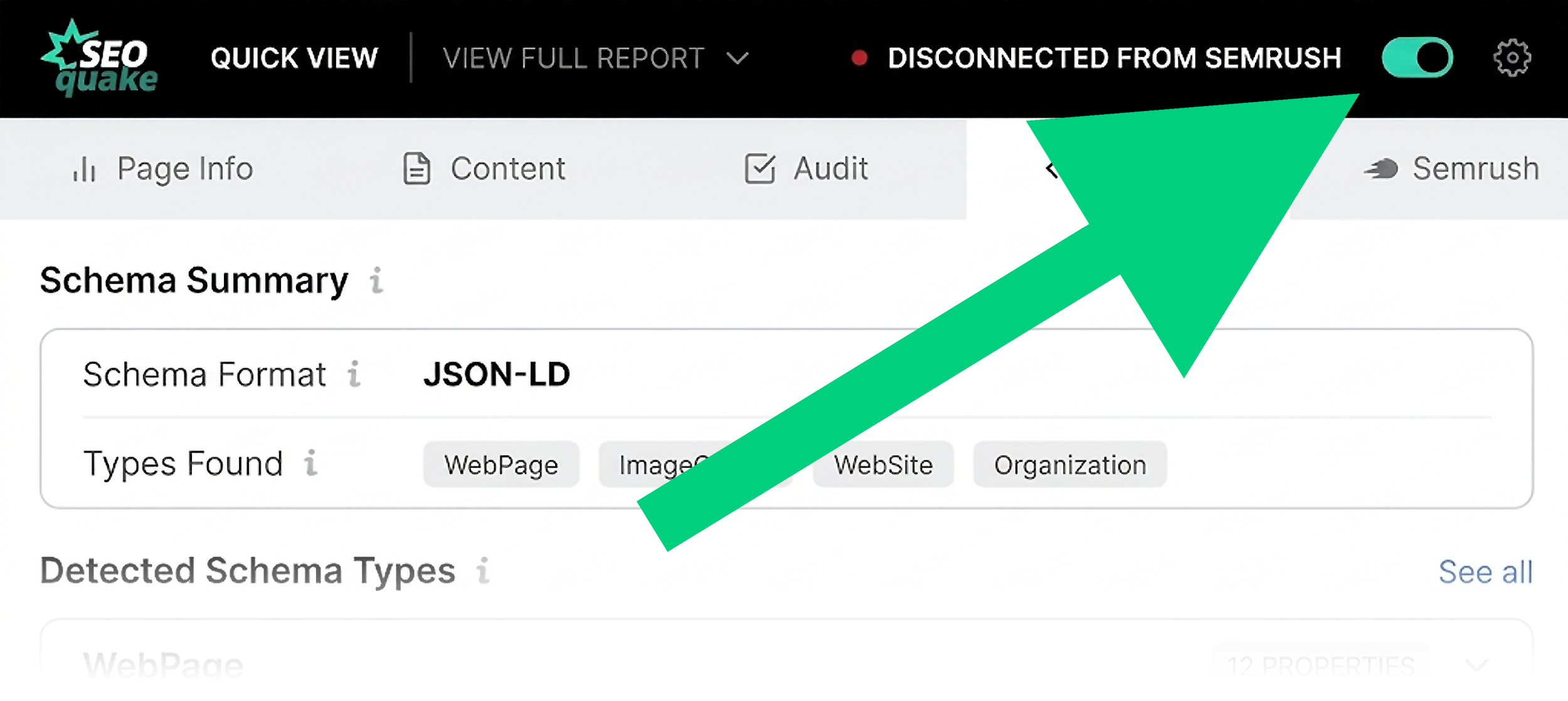
- Open Settings and select the SEObar tab. Turn on Show SEObar on all pages. For an HTTPS page, also turn on Show SEObar on HTTPS pages.
- Check URL filters. Remove a matching rule from Exclude list, or confirm that the current domain matches Whitelisted domains.
- Changes save automatically. Reload the webpage.
Choosing “For this domain” from the bar’s disable menu adds that domain to the Exclude list. Choosing “For any domain” turns SEObar off globally.
11. SERP Overlay Does Not Appear
Confirm SEOquake is enabled in Chrome’s extension details, update to 4.2.2 or later, and reload Google.
If SEOquake is paused, open Quick View and turn on the switch next to the gear icon. Then click the gear icon and make sure “Show SERP Overlay” is checked.
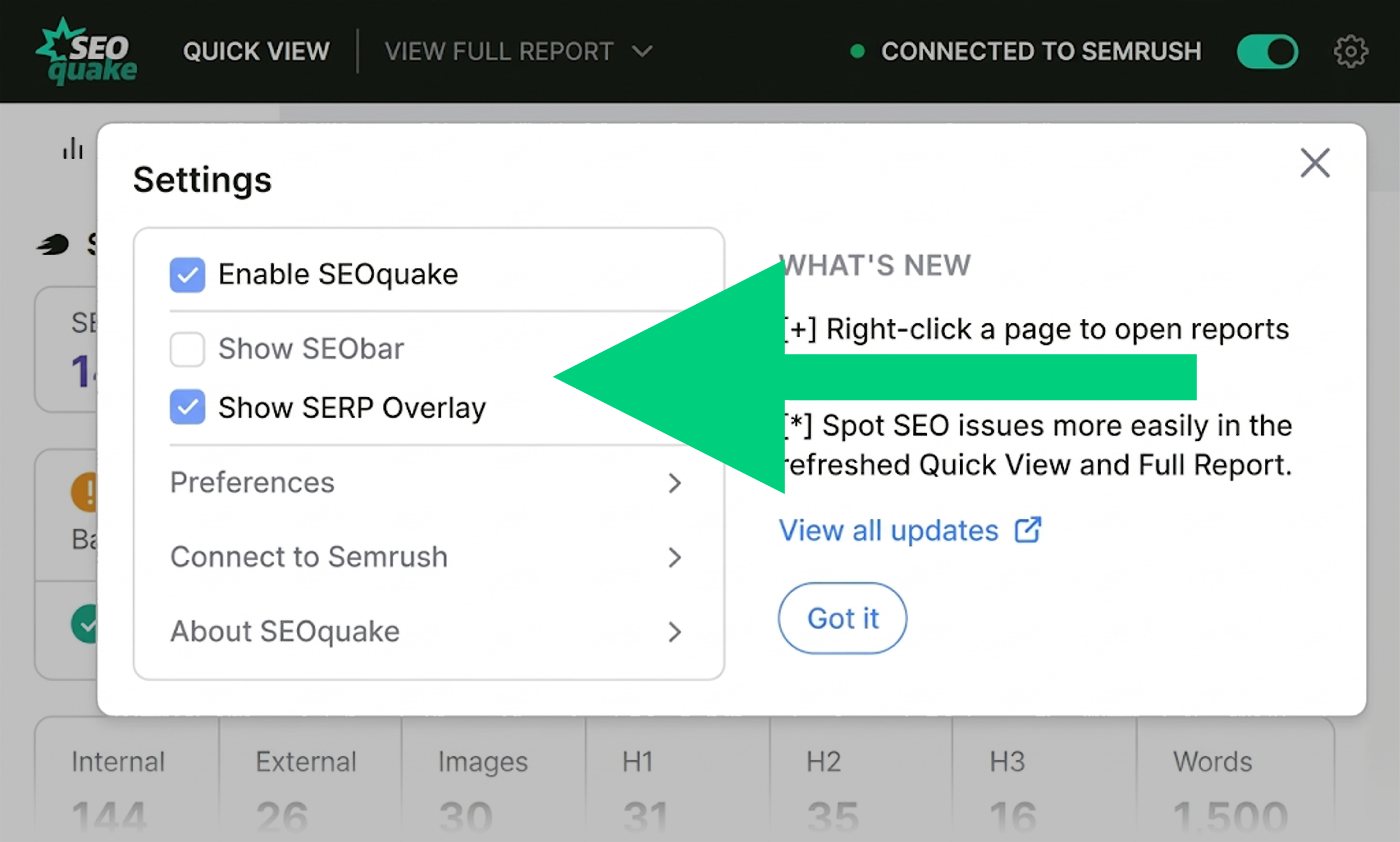
If you see only the SEOquake logo tab, select it to reopen the sidebar. Collapsing the sidebar does not turn off result metrics.
Select the SEOquake checkbox on the left of Google results. If the controls are missing, turn on Show overlay on Google search results under Settings > SERP Overlay. Changes save automatically. Reload Google.
Check your Parameters selections. If loading is set to By request, select Load all. For incognito searches, turn on Allow in Incognito in Chrome’s extension details.
12. AI Overview Source Metrics Are Missing
Confirm Show metrics on AI Overview sources is on under Settings > SERP Overlay.
SEOquake reads supported source cards. Some AI Overviews only have inline links. If Google offers a source list, expand it; the Analyze sources panel updates automatically.
For missing Authority Score, visits or engagement metrics, check your Semrush connection. If a connected metric shows a question mark, select it to retry.